
When you’re drawing, sketching, painting, writing and editing photos on a computer, a mouse is only going to get you so far.
Graphics tablets are equipped with highly sensitive stylus and even a screen. You can draw images and graphics in a breeze than with a mouse.
Drawing Tablets have become an essential tool for digital artists, graphic designers, photographers, and illustrators.
With an unique design and powerful features, these devices allow unparalleled precision and flexibility in artwork creation.
Drawing tablets are so good these days, and while it’s great having so many excellent options to choose from, it also means that finding the perfect one for you can be a challenge.
To make sure you get the most for your investment, we’ve picked out the best of the best.
The best tablet for you depends on the your preferences, budget and needs. You’ll find something on this list that’ll suit you perfectly.
What is drawing tablet ?
For those who have never used a drawing tablet, It is a computer input device that allows you to draw with a stylus, similar to the way one would draw with a pen and paper.
The stylus or pen sends the digital signal to the computer, allowing the user to create digital art, graphics, and designs.
Graphic tablets come in a variety of sizes and styles, and can be used for a wide range of applications, including digital art, graphic design, animation, and online teaching.
What are the different types of drawing tablets?
There are 3 different types of graphic tablets, including:
Graphics Tablets
In and of itself, it does not display anything graphically. Usually, the tablet’s active surface mapped to the display of the monitor. Whatever you draw on the tablet surface shows up on your computer screen.
Notably, Screenless graphics tablets are relatively inexpensive and perfect for beginners. But there is a learning curve of feeling your pen position on the tablet with what you are seeing on your monitor.
There are several good options for graphics tablets without screen, such as the Wacom Intuos, Huion Inspiroy, and XP-Pen Deco.
Pen Displays
While display drawing tablets are more expensive, they’re a bit more intuitive because you draw directly on the screen with a stylus.
Unlike standalone tablets, they still need to be hooked up to a computer to work—because they essentially a monitor and have have no computing components.
Some popular choices include the Wacom Cintiq, Huion Kamvas, and XP-Pen Artist.
Standalone Drawing Tablets
There are also plenty of all-in-one drawing tablets support pen input for artists, that allow you to draw straight on the screen of the tablet.
You’ll not need any additional computer to use the standalone drawing tablet. The device’s compact and lightweight design also makes it easy to carry around and drawing on the go.
Users are likely more familiar with this type: apple ipad, samsung galaxy tab and microsoft surface. These are the most expensive options!
What are the benefits of using a graphics tablet for digital art?
Using a graphics tablet to draw on a computer offers a range of benefits.
Firstly, it allows for a much more natural drawing experience than using a mouse, as the stylus pen gives more control and accuracy.
Secondly, the pressure-sensitive stylus pen allows for more varied and realistic strokes, making it much easier to create more sophisticated artwork.
Finally, the pressure-sensitive stylus also has the advantage of being able to access other tools and functions, such as changing brush size and shape, selecting colors, and zooming in and out.
Additionally, some graphics tablets come with additional features, such as a touch pad or buttons, that can make it easier to control the software and tools you use.
In summary, using a graphics tablet to draw on a computer offers a more natural, accurate and sophisticated drawing experience than using a mouse.
12 Best graphics drawing tablets in 2024
Listed below are some of the most popular options available in the market that will get your job done instantly and perfectly.
Whether you use it for sketching, photo editing, painting, illustration or online teaching, we’ve got you covered!
1. Wacom Intuos
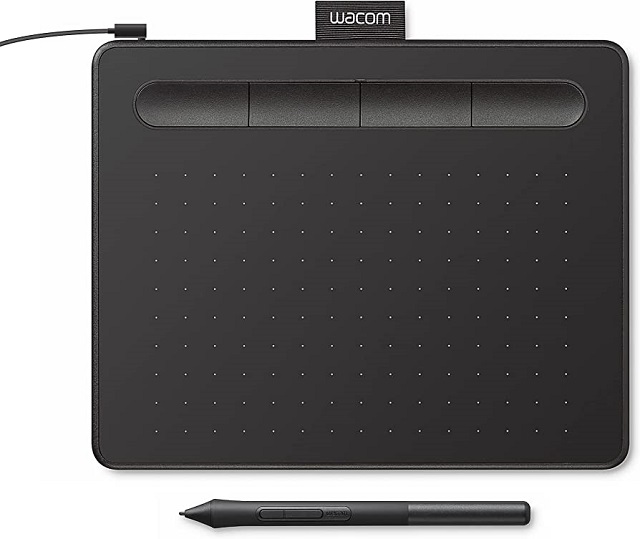
The design of the Wacom Intuos is compact, portable and sleek. The rounded edges are well finished.
The tablet has a work area of 6.0 x 3.7 inches and 8.5 x 5.3 inches, Which is very portable, so you can bring it with you wherever you go.
The pen offers 4096 pressure levels and is battery-free. The pressure levels work great as well. Sure, these days a lot of graphics tablets already offer 8192 pressure levels, but 4096 is completely fine too.
It features four programmable express keys at the top of the device. There are also two buttons on the pen and can be programmed. This makes it easy to access the tools you need or use the most.
The surface of the tablet has a matt finish on it, which is very pleasant when you rest your palm on it. On the backside, there are four tiny rubber feet, so the tablet won’t slide on a table.
It compatible not just with Mac and Windows, but even with Android and chromebook devices.
It comes with 3 art software trials (Corel Painter Essential, Clip Studio Paint Pro, Corel After Shot) and is a lot of fun.
The Wacom Intuos is an easy entry into pen and tablet-based photo editing and illustration on a budget.
2. XP-Pen Deco 01 V2
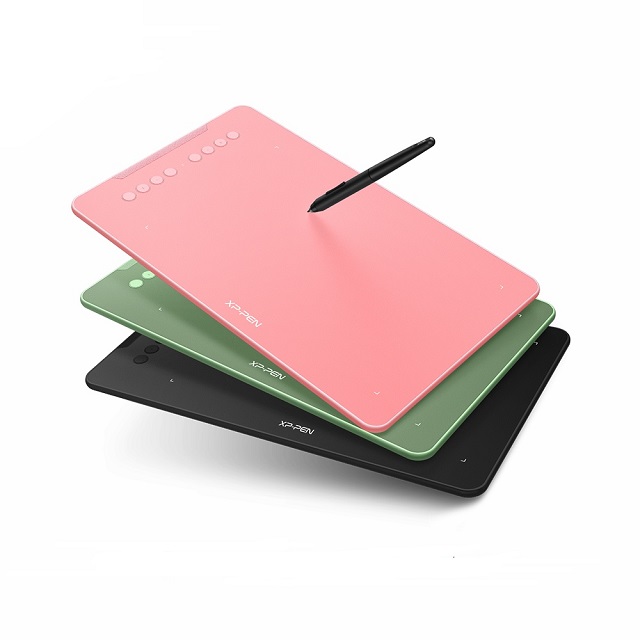
The XP-Pen Deco 01 V2 tablet’s large active area is 10 x 6.25 inches, but its thickness is only 8mm.
The surface is extremely slick, and the protector film lies flush against the tablet perfectly. It feels firm and sturdy. It is available in 3 colors – Black, Gree & Pink.
The stylus features 8,192 levels of pressure and It even supports 60 degrees of tilt brush effect! you can do soft shades by tilting the stylus, the lines and strokes come out looking natural.
The pen is battery-free and has two customizable buttons and comes with 8 extra nibs.
There are 8 round programmable shortcut buttons on the XP-Pen Deco 01 to increase the work efficiency. They click nicely and are fairly easy to press.
Compatible with Windows, Mac, linux and Chrome OS. You can also connect it to your Android phones or tablets with the OTG connector that is included.
If you’re looking for a versatile drawing tablet, this model is an excellent choice.
3. Wacom Intuos Pro
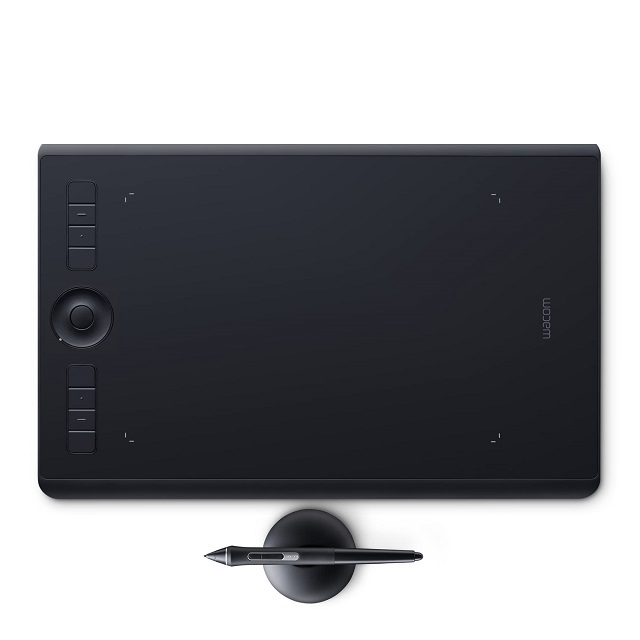
The Wacom Intuos Pro is a high-end, yet still expensive, graphics tablet. This popular tablet can seriously enhance your workflow.
It comes in three sizes: small (6.3 x 3.9 inches active area), medium (8.7 x 5.8 inches) and large (12.24 x 8.5 inches).
Every piece of it feels like it was perfectly engineered to be handled by someone with a soft and precise touch. Everything is well balanced.
It comes with the famous Wacom Pro Pen 2 battery-free stylus, The pen tip is very thin for precision and features 8,192 levels of pressure sensitivity, tilt-response, and virtually lag-free tracking.
The pen is extremely comfortable to hold with its latex grip and there is almost no latency when drawing. There are 2 customizable shortcuts and an earser on the pen.
Besides the pen, you can use your fingers for multi-touch input, just like the tablet was a big trackpad.
With the Intuos Pro series, you have 6 to 8 Express Keys. and it offers a scroll wheel between the two sets of Express Keys. All are customizable using the wacom driver.
The Intuos Pro Line cater to professionals artists who are looking to gain efficiency and improve their workflows.
4. XP-Pen Deco Pro
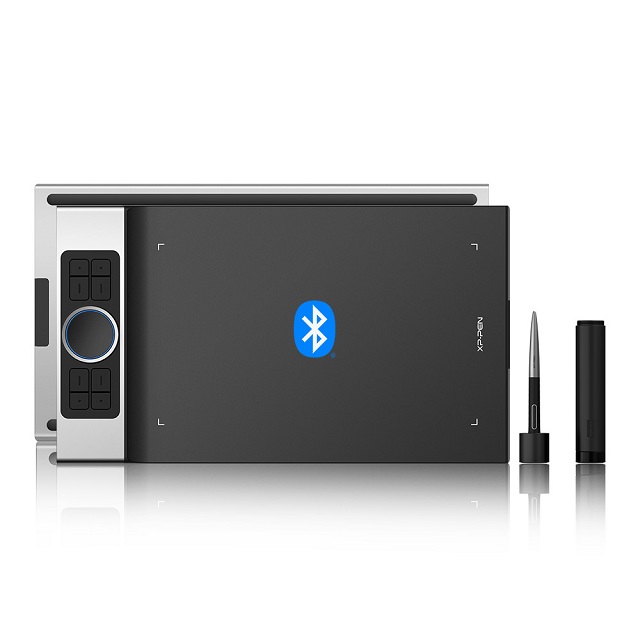
XPPen Deco Pro is available in two models: small and medium. the small version has 9 x 5 inches of the active working area, while the medium variant has a really massive 11 x 6 inches of working area.
The XP-Pen Deco Pro is crafted with a robust aluminium alloy back casing. which gives this tablet a much more durable feel compared to many other screen-less tablets which are made mostly from plastic.
The tablet looks modern and sleek in appearance with matte black and metallic silver color that really complements each other. On the backside, there are two large rubber strips that grip the surface and keep the tablet securely planted on the surface.
The XP-Pen Deco Pro also features a new type of dual function wheel, which has a physical wheel on the outside and a touch wheel in the center, This feature greatly improves comfort and efficiency for a professional level workflow (zoom, rotate, scroll, change brush size, etc).
The Deco Pro stylus has a very distinct design with metal at the back and silicone grips at the front half, you will notice that you will draw quite well and steadily when using the pen.
The stylus comes with 8192 levels of pressure sensitivity and supports tilt up to ±60°. The tracking of pen movement, tilt and pressure is near-perfect, removing any barriers between what you mean to draw or paint and what turns up on the screen.
Deco Pro SW and MW are delicately integrated with advanced Bluetooth v5.0 chips for reliable wireless connections. The Bluetooth connectivity is a game-changer, making it easier to move around your workspace without being tethered to computer.
The XP-Pen Deco Pro is a great tablet that is an absolute bargain at its price point, especially when compared to Wacom Intuos Pro.
5. XP-Pen Artist 12 (2nd Gen)
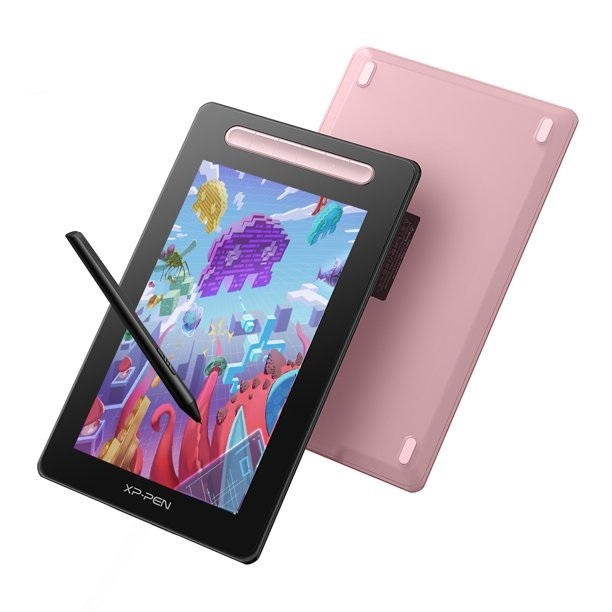
XP-Pen Artist 12 (2nd Generation) is an overall solidly built display that you can feel comfortable about slipping into your laptop bag and taking with you.
It takes advantage of single USB-C cable connectivity for power, increasing the display’s portability as it does not need an additional power source to use.
The 11.9-inch IPS display offers 1920 x 1080 pixels resolution and 94% Adobe RGB color accuracy, ensuring your images on the screen are clear, accurate and vibrant.
Also, the screen of Artist 12 (2nd Gen) is fully laminated, This helps to close the parallax gap between where the tip of the pen touches and where the cursor is displayed below it.
The surface of screen has a nice matte finish that reduces glare from any surrounding light sources and provide a rougher texture for drawing.
The stylus features the X3 smart chip, comes with only 3 grams of initial activation force, supports 8192 pressure levels and 60 degrees of tilt detection, which increase its sensitivity, and feels smooth when drawing.
The tablet is flexible and fit for both left-handed and right-handed individuals, allowing you to work faster through 8 shortcut keys.
The Artist 12 (2nd Gen) is available in four colors: black, blue, pink, and green colors. You can use it with Windows, Mac, Linux, ChromeOS and Android devices seamlessly.
Overall, The XPPen Artist 12 (2nd Gen) is a reasonably priced and well-designed pen display that great for beginners and hobbyists.
6. Huion Kamvas 13 Pro (2.5k)
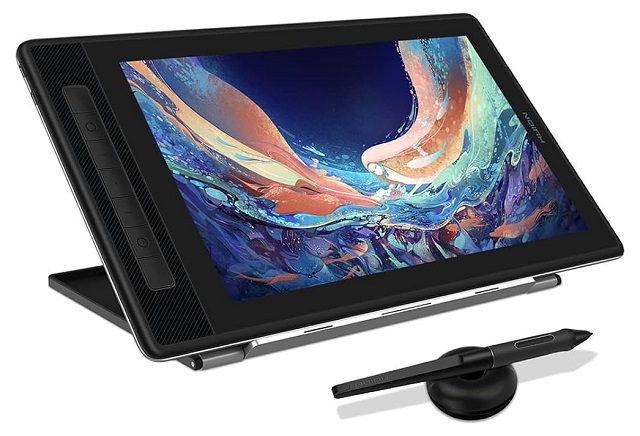
The Huion Kamvas 13 Pro tablet comes with a sleek, modern, and minimalist design. It’s lightweight and portable for any artist or photographer.
You have a 13.3-inch fully laminated screen with etched glass surface at the front, and 8 shortcut buttons located at the left.
On the back, you will find 4 circular rubber pads the help the tablet to get a firm grip on smooth surfaces.
The QLED Panel has a color reproduction of 145% sRGB, resolution of 2.5K QHD (2560 x 1600-pixel), and high contrast ratio of 1200:1. The screen looks sharp and you won’t be able to see individual pixels even when working up close.
The PW517 pen is of a battery-free variety, with 8192 levels of pressure and 60º tilt support, providing a natural and precise drawing or editing experience.
The tablet stand is made with metal and hard plastic. Build quality is solid. There are spare nibs within the donut-shaped stand for the pen.
The Huion Kamvas 13 Pro is a well designed and well built budget pen display that has good drawing performance.
7. Wacom Cintiq 16
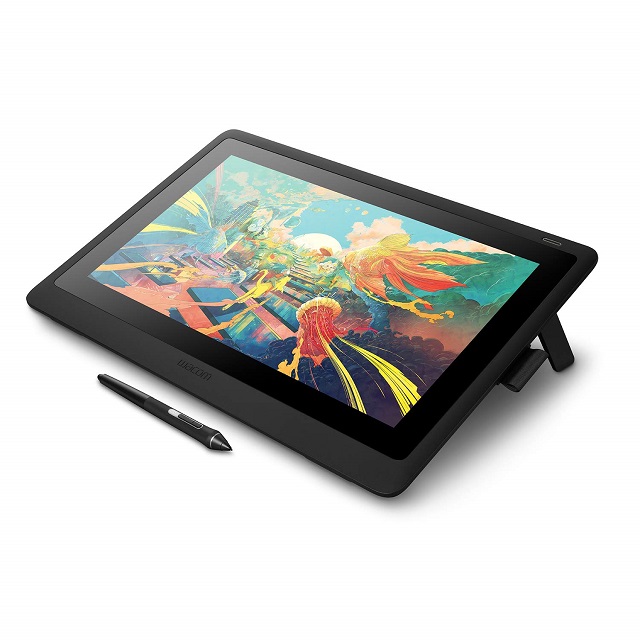
Wacom Cintiq 16 is moderately priced, and is a good choice for art students and pros on tight budgets.
The IPS display is 15.6-inch diagonally and has a resolution of 1,920 x 1,080 (full HD). It can display 16.7 million colors but covering only 96% of sRGB color space.
The included Wacom Pro Pen 2 is considered the best stylus available. It has 8,192 levels of pressure sensitivity with tilt capability, which enables you to be as accurate as possible with your work.
Also, the stylus is battery-free, has two side buttons, a rubber grip, and an eraser on the rear end that can erases all the marks you make on the drawing tablet
The build quality is solid, and the tablet is easy to set up and use. You can find 2 flip out legs on the back of the Cintiq 16, which allow you to work at a 19-degree angle.
There are no express keys on this model and Wacom doesn’t include the Express Key remote, but it is compatible and can be purchased separately.
The budget-minded Cintiq 16 tablet cuts the frills and keeps what really matters, It is big enough to comfortably draw on, and the stylus provides accurate and responsive input.
8. Huion Kamvas 16 Pro (2.5k)
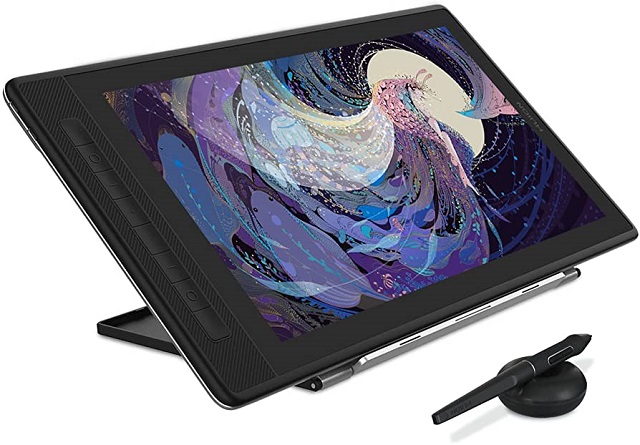
The Huion Kamvas Pro 16 (2.5k) is the latest 16″ pen display with a higher pixel density, better resolution, and a new design.
15.8-inch QLED display paired with 2560 x 1440 Pixel resolution is a good combination, The extra sharpness and detail is a noticeable upgraded compared to 1920 x 1080 Pixel.
It boasts 145% sRGB gamut coverage, the color precision and uniformity across the screen to be close to faultless, and when combined with the detail of the 2.5K display, this is an excellent screen.
The display is laminated so there’s almost no visible air gap between the pen tip and the line beneath.
The matte glass surface all but eliminates glare, provides the coveted ‘paper like’ feel and sound when drawing, and doesn’t have a noticeable impact on image clarity or brightness.
The PW517 battery-free stylus uses Pen Tech 3.0 technology, has 8,192 levels of pressure sensitivity and tilt recognition. The high level ensures precise and nuanced control over brush strokes and other elements.
The tablet features eight press keys for your customization. the battery-free digital pen also provides an additional two customizable buttons.
Huion Kamvas Pro 16 is a well designed pen display with solid build quality and and fantastic drawing performance. It is designed to deliver top-notch performance for digital artists and designers.
9. Huion Kamvas 22 Plus
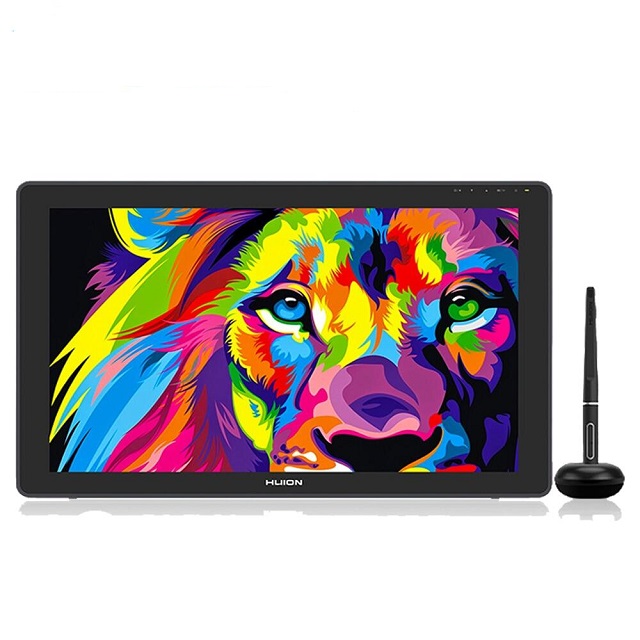
Huion Kamvas 22 plus is a big drawing monitor with a sturdy design, neat features, and an easy setup. the drawing performance is fantastic.
This 21.5-inch QLED display has a resolution of 1,920 x 1,080 at 102 pixels per inch, This should meet for your drawing and secondary screen needs.
It has good colour accuracy of 140% sRGB and the contrast ratio reaches 1200:1, which enables your Kamvas 22 Plus better present the colors applied to your art works.
The screen is fully laminated with no air gap between the display layer and the top etched glass surface covering it. the slight texture surface feeels like smooth construction paper, which also helps reduce glare.
The Kamvas 22 Plus has an excellent 8,192 levels of pressure sensitivity, you can adjust pressure curve in the driver.
The battery-free pen offers sensitivity and precision up to a contact angle of 60 degrees in any direction, which assures better accuracy in making manual inputs.
This Kamvas 22 plus tablet feels solid and has a good quality rubber stand that makes adjusting your preferred working angle a real breeze. It supports VESA Mounts.
The Huion Kamvas 22 Plus is a good tool that offers functions as a monitor, a precision editing and retouching tablet, and a multi-tasking device.
10. XP-Pen Artist 24 Pro
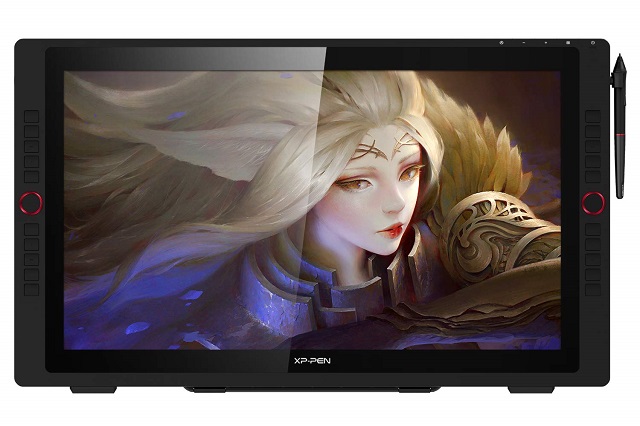
XP-Pen’s Artist 24 Pro is one of the most compelling professional grade large graphics displays on the market.
It offers 23.8 inches of screen space at 2.5K QHD 2560 x 1440 resolution and an excellent color gamut of 90% Adobe RGB for hobby and professional work.
The display panel is IPS, Viewing angles are great. Color shift is minimal when display is viewed from the side. The display comes with a matte screen protector already applied.
Total two red dials and 20 customizable shortcuts keys are placed on both sides of the display, so whether you’re right or left-handed, it’s easy to use.
The PA2 battery-free stylus has 8192 levels of pressure sensitivity and 60 degrees of tilt function which is on par with what you get with top of the line drawing tablets. It’s very precise and smooth to use, drawing performance is fantastic.
The rubberized grip makes it easy to hold while the 2 side buttons can be customized with mouse clicks or keyboard shortcuts.
The pen case comes with eight replacement nibs along with a nib remover, the cap also can be used as an excellent pen stand.
The XPPen Artist 24 Pro device is really great, If you plan to spend hours at the huge screen for photo editing, sketching, painting or 3D sculpting this is a really great option.
11. Huion Kamvas Pro 24
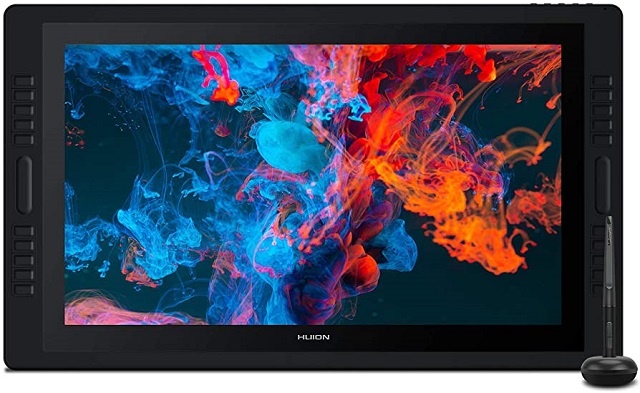
Huion’s Kamvas Pro 24 is a huge screen graphics tablet that gives you pretty much everything you need.
It boasts a 4K UHD (3840 x 2160) resolution which enables clear and sharp picture presentation on the 23.8-inch screen. Even the most subtle details can be presented crisply.
The QLED panel sports 1.07 billion colors with high dynamic range, covering 140% of the sRGB gamut, giving you the tools to create rich, vivid images.
Combining anti-glare etched glass surface with a fully laminated screen, this professional-grade tablet provides exceptional drawing accuracy with minimal parallax that mimics a pen and paper experience.
The PW517 digital pen delivers an accurate and natural drawing experience with 8192 pressure sensitivity levels, a 60° tilt support, and a 300 pps report rate.
The stylus also comes with a smooth rubber grip, two buttons on body. You will get a donut-shaped pen stand that contains with 5 standard pen tips and 5 felt pen nibs.
12. Apple iPad Pro
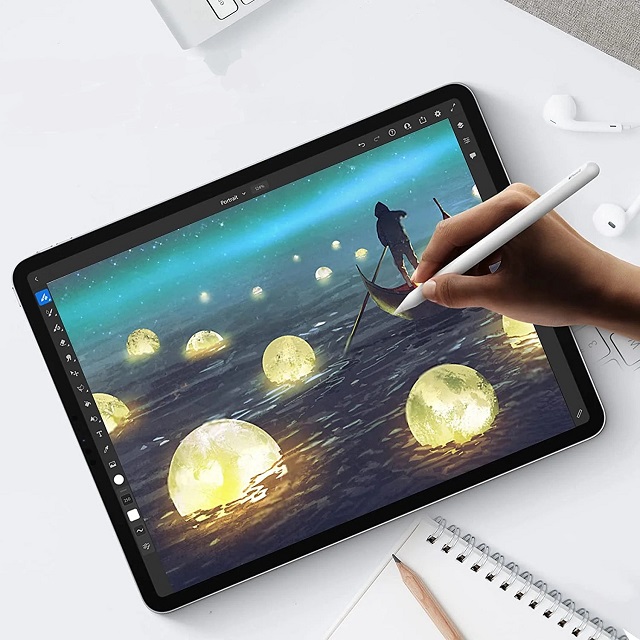
The iPad Pro (6th gen) is light and portable, but can be a fully capable artist’s workstation – perfect for international travel.
The 12.9-inch Liquid Retina XDR display offers a resolution of 2048 x 2732 pixels, delivering a pixel density of 264ppi. and 1,600 nits of peak brightness. The display is vibrant, sharp and bright.
The display’s refresh rate of 120Hz ensures excellent responsiveness. It also features True Tone, 115% of DCI-P3 wide color gamut and a mini-LED backlight. The tablet world doesn’t have much to rival it at the moment.
The M2 chip offers an abundance of power – probably more than what most people will need, and there’s up to 16GB RAM too.
Its compatibility with the Apple Pencil 2 means you get one of the best styluses available right now, drawing with the Apple pencil is great. It feels smooth and responsive.
Unfortunately, If you want to use a stylus, you’ll have to buy it separately. It charges using induction when you magnetically attach it to the side of your iPad Pro; it’s also a convenient way to store it.
Exclusive iPadOS painting Apps like procreate is pretty handy both for simple sketching and doodling and for some creative illustration pieces.
The 12.9-inch Pro model builds a 10758 mAh battery with 18W fast-charging support. you can draw, surf the web and watch videos for up to 10 hours.
Apple’s fast M2 Processor, high-definition Retina XDR display and the exceptional Apple Pencil all combine to make iPad Pro into powerful drawing tools.
How to choose the best drawing tablet?
There are a lot of factors that impact the quality and functionality of a drawing tablet. Here are a few of the most important:
Size
The size of a drawing tablet is an important consideration.
A larger tablet provides more active drawing area and can be more comfortable to use, but it is also more expensive.
A smaller tablet may be more portable and affordable, but it can also be more difficult to draw on for extended periods.
Pressure Sensitivity
With pressure sensitive you can control the thickness and opacity of brush strokes in graphic software like photoshop and more.
A line can go from thin to thick depending on how hard you press the pen tip—much like a pencil.
The numerical value starts from 1,024 and goes to 8,192 levels.
The advantage of going with a greater number of pressure levels is that it enables you to make finer distinctions in the thickness of the lines.
The ideal pen pressure is over 2,048, but anything far exceeding that value will be hard to notice.
Tilt Recognition
Tilt Recognition or Sensitivity is an advanced tablet feature that allows the device to perceive the angle of the digital pen over the tablet surface.
If the tablet support this feature, they can change angle as you tilt the pen (much like a calligraphy pen).
Stylus
There are majorly two kinds of stylus: AES (Active Electrostatic) Pen and EMR (Electron magnetic resonance) stylus.
AES styluses like apple pencil has a lithium battery inside, need charging to work, They are usually slimmer and fit comfortably in your hand.
EMR styluses like wacom pen has no battery inside, so require no charge at all. They use electromagnetic frequency that transfers power to the pen wirelessly right from the tablet.
This is great for user who love wireless accessories and don’t want to keep replacing batteries.
Resolution
Lines per inch or LPI index is a variant of resolution that is common in the drawing tablet jargon.
Pen tablet typically have a resolution ranging from 2,048 to 5,080 LPI.
If your work involves designing highly detailed images, a higher LPI index is what you should look for.
Hotkeys
Hotkeys are the shortcuts that you can use to do your work faster, and smoother. They help you save time.
Many tablets even come with a built-in scroll bar or scroll wheel to zoom in and out the canvas quickly.
Wireless Connectivity
Some graphics tablets (limited to non-screen type) can connect to computer wirelessly through 2.4GHz Wifi or Bluetooth.
An advantage of a wireless drawing tablet is that you’re not bothered with cables on your desk. You can also easily take it with you.
The disadvantage is that you have to charge the drawing tablet regularly, and sometimes they likely have more lag than a wired one.
Wired drawing tablets are cheaper but will not give you the freedom of movement that wireless tablets do.
Screen Quality
A high-quality display is crucial for drawing, as it affects color accuracy and detail.
When looking for a pen display monitor, there are several factors to consider.
The most crucial factor is the size of the screen, which can range from as small as 10.1 inches to as large as 32 inches.
A larger screen offers more room to work and can provide a more immersive drawing experience, but it also comes at a higher cost.
Another essential factor to consider is the resolution of the screen. A higher resolution means a more detailed and crisp image, which is especially important for artists who work with fine details.
Additionally, the color gamut represents the range of colors visible to the human eye on screen. The wider the color gamut range is, the richer the screen colors are.
Compatibility
Make sure the tablet you choose is compatible with the operating system of your computer or mobile device.
Most drawing tablets are compatible with both Windows and Mac operating systems, but some may not be compatible with certain software applications or devices (like Android or Chrome OS).
Brands
Wacom, the benchmark in the industry, is well-known, and most professionals are using Wacom.
Huion, XPPen and other brands are affordable and cost-effective, suitable for beginners and advanced users.
Several leading ordinary tablet brands like Apple, Microsoft and Samsung offer select models that support pen input, perfect for artists to draw on the go.
Price
Some graphic tablets listed here may be pricey, but they deliver excellent drawing performance and will keep on running well into the foreseeable future.
If you’re looking to spend a little less and still get the best tablet on a budget, you can find something really good for under $100.
Conclusion
A drawing tablet is something you can make great use of whether you’re are an experienced artist or just starting.
We recommend beginners to start out with a non-display tablet as these are generally the most affordable models. And they can still give you a feel for whether or not a drawing tablet is something you’ll stick with long term.
Once you’ve gotten more comfortable with digital drawing it might be a good idea to upgrade to a built-in display tablet.
If you do a lot of traveling you may actually want to start with one of standalone drawing tablets like iPad Pro instead.
The best drawing tablet would be the one which fulfills all your requirements.
You don’t need to waste a lot of time on the many options. Just look at options with a discerning eye, and you’ll find your dream drawing tablet.
FAQs
Is a graphic tablet necessary for graphic design?
Yes! If you want to do your graphic design quickly and more efficiently you should definitely consider purchasing a graphic tablet.
Consider if you do digital illustration work or photo retouching, a graphics tablet could make your work a good deal easier and a lot more fun.
A pressure-sensitivity stylus offers a more natural way to draw, paint and retouch than a mouse could ever provide.
Should I get a drawing tablet with or without screen?
We recommend starting with a graphic tablet without screen because it’s less expensive and good for beginners at digital art.
Drawing tablets with screen are amazing: more More intuitive and natural, but they are expensive and it’s best to make an investment you know you’ll use.
Both are great for making art regardless but using screenless tablet does take some getting used to.
Do pen display like wacom cintiq need a computer to work?
Yes, all pen displays (like Wacom Cintiq, Huion Kamvas and XPPen Artist) require a computer to function.
They do not have a cpu, nor do they have a hard drive, memory, operating system, etc.
Is it better to draw on a traditional graphic tablet or iPad?
The choice between an iPad and a tradition graphics tablet depends on factors like your workflow, preferences, and budget.
Some professional digital artists prefer the precision and features of graphics tablets, while others appreciate the portability and versatility of iPads.
It’s worth trying out both if possible to see which feels more comfortable for your specific needs.
What are some good drawing programs to use with graphic tablet?
There are a lot of very good digital painting programs out there on Windows & MacOS computer, such as Adobe Photoshop, Clip Studio Paint, Corel Painter, Sketchbook Pro, Artrage, Paint Tool SAI, Rebelle, etc.
If you are a beginner, here has some free ones too, Krita, Medibang paint, Firealpaca, Mypaint, Artweaver, Gimp, etc.
Each software listed here has every tool you could possibly need and even more!


Just bought mine Huion Kamvas 16 Pro.The resolution is plenty sharp for its size. Color and brightness is on par with my Samsung galaxy s8 tablet. The surface has some “tooth” to it, so I don’t need to order felt nibs anymore!
Yes, huion kamvas pro 16 has an etched matte glass surface while samsung galaxy tab has a glossy surface.
Excellent review, thanks. Helps me to decide on my next Cintiq model.
if you are not a professional, Cintiq 16 is enough.
Great Article!
Huion has some very cheap lineups and does the job, its good for beginners.
I have personally used their screen tablet lineup which was the Kamvas 13 when I started out. I’d say its a bang for your buck when you want to dip your toes in the world of drawing tables.
Huion Kamvas 13, XPPen artist 13 (2nd gen) and wacom one 13 are the top 3 most affordable display tablets at 13.3-inch for drawing.
Thank you for such an informative article.
I am interested in the Wacom Intuos Pro Medium and the Wacom Cintiq 16. I don’t know which one to get.
I want to start using drawing tablets with displays because I like that I can directly look at what I’m drawing but the Intuos Pro seems to be better in many ways.
If you are on a budget, buy wacom Intuos pro. If you can afford it, buy Cintiq 16, It is much more easier and intuitive to draw directly on something that you can see.