Corel Painter is a well-known digital painting software, while CorelDraw is a market-leading graphic design softwre. But in order to run smoothly, it needs the right device.
The graphics tablet is comprised of the drawing surface and the stylus. They have become an essential tool for artists, animators, photographer, graphic designers, and digital illustrators.
For them, This is a great way to produce many drafts and to be able to make changes, while being able to also directly digitise the image and edit it in various programs.
With a digital pen and powerful features, these devices allow unparalleled precision and flexibility in artwork creation.
Are you looking for the best drawing tablets for Corel Painter and CorelDraw? Whether that be for drawing, illustration or art, we’ve got you covered!
Corel Painter vs CorelDRAW: What is the Difference?
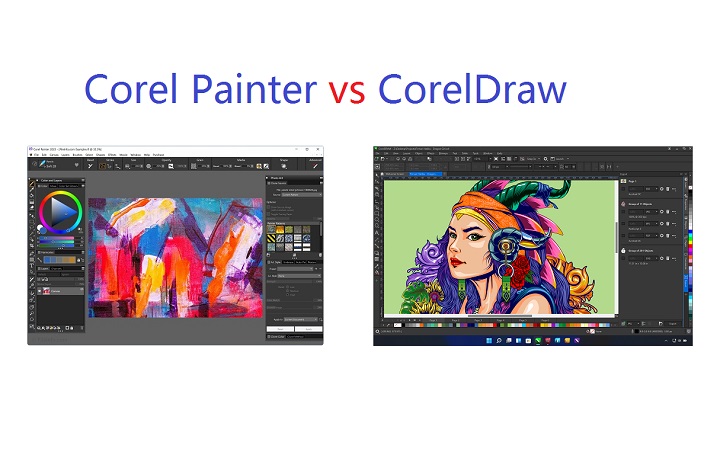
Corel Painter is built for digital painting, with all the features and tools needed for creating realistic digital artwork.
It has a robust painting engine, multi-layered brushes, cloning and photo-painting tools, and a drawing tablet compatibility that makes it very intuitive for painting.
It allow susers to make and edit raster based images or bitmaps like your JPGs, PNGs and BMPs among others… stuff made out of pixels. If you need a professional-level digital painting program, then Corel Painter is definitely the way to go.
CorelDRAW, on the other hand, is a vector-based graphic design software. It is a powerful and versatile application that provides a wide range of tools and features for creating, editing, and manipulating various types of visual content.
CorelDRAW is primarily used for graphic design and illustration purposes. It allows users to create and edit vector graphics, which are images defined by mathematical equations and can be scaled without losing quality.
This makes CorelDRAW suitable for designing logos, illustrations, posters, brochures, banners, and other printed or digital materials.
Advantages of using a Graphic Tablet for Corel Painter and CorelDraw
The graphic tablet allows you to draw with a pen or stylus, which feels more natural, easier and comfortable than using a mouse. This can be especially helpful for people who are used to drawing on paper.
graphic tablet allow more accurate control than a mouse, which makes it possible to do very detailed work.
A graphic tablet can be more ergonomic than using a mouse, as it allows you to keep your arm and wrist in a more natural position. This can help to reduce fatigue and pain.
When you use a pressure-sensitive stylus or pen tablet with Core Painter and CorelDRAW, the amount of pressure that you apply controls the width of your strokes.
Each person uses a different strength or pressure level in a stroke, and you can set the application to match your stroke strength by specifying pen settings.
Best of all, The brushes of Corel Painter and CorelDraw are built to take advantage of pressure and many also allow for tilt, rotation and bearing control so that you can create your ultimate art.
In addition, You’ll also like that the Hotkeys on the side of the tablet can be customised to suit Corel Painter and Corel Draw so that you can work even more easily without having to use your keyboard.
Combine a drawing tablet with Corel Painter and CorelDraw’s wide selection of brushes and features, like the bezier tool, It will fit all your digital art needs and take your digital art to the next level.
You’re in for a treat when you get used to it; and when you start using the tablet for drawing in Corel Painter and CorelDraw software, you’re going to start to wonder how you ever lived without it…
What Drawing Tablet Types is Best for Corel Painter and CorelDraw?
There are 3 types of drawing tablets available and which type you intend to get will drastically alter your required budget.
1. Graphics Tablets
The first type is called a graphics tablet. Usually, the tablet is interacted with a pressure sensitive pen with the surface of the tablet mapped to the display of the computer.
Notably, graphics tablets are relatively inexpensive at less than $100 USD, and perfect for beginners. But there is a learning curve of feeling your position on the tablet with what you are seeing on your monitor.
The most popular such device at the moment for instance would be the wacom intuos, XP-Pen Deco, and Huion Inspiroy.
2. Display Tablets
The pen display tablet has an in-built screen so that you can just draw straight on the display. The learning curve is much less than the hand-eye disconnect experienced with a non-screen graphics tablet.
The obvious disadvantage of a display tablet is the increased cost which can exceed $200 USD. So you will need to decide how much you are willing to spend.
Display tablets come in a variety of sizes and display resolutions. But they still require a computer in order to function. You can think of it like an extra monitor that handles drawing on the screen.
The most popular such device at the moment for instance would be the Wacom Cintiq, XP-Pen Artist, and Huion Kamvas.
3. Standalone Tablets
Some mobile tablets come with pen input support and when they do you can usually buy an optional pressure sensitive stylus. Of course, they are usually the most expensive.
The most popular such device at the moment for instance would be the iPad Pro + apple pencil, surface pro + slim pen 2, and samsung galaxy tab + s pen.
Compared to regular drawing tablets, they allows you to more easily draw digitally on the go, when you’re out and about since these are highly portable devices.
These devices can come with different operating systems, most of them will ship with either iOS or Android and only very few will ship with Windows (Surface Pro though).
This also means that your drawing software choices will be limited by your OS, for instance you are not going to get full fledged corel painter and corelDraw going on iOS or Android.
In addition, These mobile painting applications will never match up to their fully featured desktop counterparts.
10 Best Graphic Tablets for Corel Painter and CorelDraw in 2024
The drawing tablets for Corel Painter and CorelDraw do not differ based on the app- they typically work just as well in each software.
We’ve compiled this list of the best tablets for Corel Painter and CorelDraw based on various criteria. We’ve included such factors as screen size, resolution, color accuracy, pressure & tilt sensitivity, and price.
1. Wacom Intuos Pro
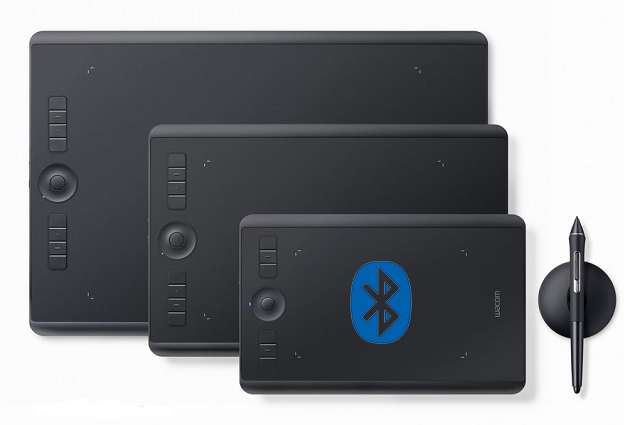
Wacom Intuos Pro is the choice of professional artists and serious ones hand down, which comes in 3 sizes, small ( 6.3 x 3.9-inch active area), medium (8.7 x 5.8-inch), and large (12.1 x 8.4-inch).
The large version can gives you ample room for large arm movements and broader strokes. The small size is Highly portable and ideal for mobile use while the Medium size is the best compromise.
The Intuos Pro is a well-designed with a classy black finish and streamlined design. Build quality is superb, and the drawing surface has a slightly rough surface that mimics the feel of paper.
It is equipped with 8 express keys to your specific shortcuts and workflows for efficiency. The Touch Ring gives you an additional way to zoom, scroll, adjust brush size, and more.
Wireless Bluetooth connectivity is also great to the Wacom Intuos Pro, thereby immediately creating a more comfortable and flexible working environment.
This tablet comes with Wacom’s most advanced Pro Pen 2 stylus, which provides incredible accuracy and control with 8192 levels of pen pressure sensitivity, tilt detection and virtually no lag.
The pen is battery-free, no need to charge and it has a soft rubber grip with two side buttons and an eraser on the end. With the comfortable and ergonomic design, it’s perfect for long drawing sessions.
Overall, Intuos Pro tablet delivers the precise, accurate drawing ability needed for professional illustration work. It is compatible with Windows and Mac OS devices.
2. XP-Pen Deco Pro
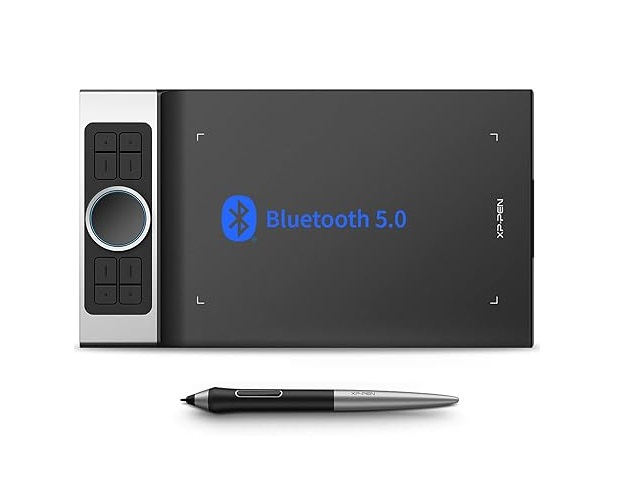
The XP-Pen Deco Pro comes in two sizes, including Small (9×5 inches working area), and Medium (11×6 inches).
The small version offers a good balance between workspace size and portability. While the medium version offers a significantly larger active area, which can be beneficial for detailed work or multi-monitor setups.
The build quality of the XP-Pen Deco Pro is solid and feels premium because of the aluminium casing. The surface of the tablet has a slight texture to it, mimicking the feel of paper and providing a more tactile drawing experience.
As a Bluetooth device, the XP-Pen Deco Pro offers the convenience of wireless connectivity. This allows for a clutter-free workspace and greater flexibility in how and where you choose to work.
The 8 customizable ExpressKeys and unique double wheel design can be a game-changer for your workflow, allowing you to access your favorite shortcuts and commands without having to reach for your keyboard.
The XPPen PA1 stylus is battery-free with 8,192 pressure sensitivity levels and tilt sensitivity of +/- 60 degrees, making it accurate and sensitive.
The Pen has two buttons and is very comfortable to hold with the rubber grip, you will notice that you will draw quite well and steadily when using the pen.
The XP-Pen Deco Pro is a great tablet that is an absolute bargain at its price point. It is widely compatible with Windows, Mac, Linux, Android, and Chrome OS devices.
3. Huion Inspiroy Dial 2
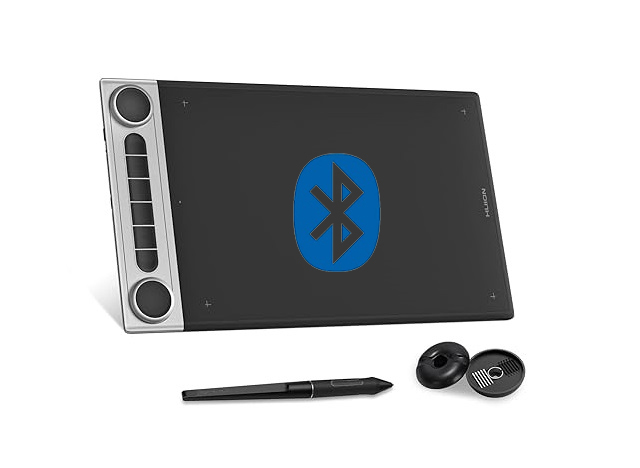
With 10.5 x 6.56 inches active working surface, 1.5 lbs weight and 3-inch thick, the size of the Huion Inspiroy Dial 2 Q630M affords great precision while remaining relatively light.
The tablet has a classy, elegant finish. Build quality is excellent and solid. The drawing surface is smooth and responsive, allowing for precise control of your strokes.
The 6 buttons on the tablet allows you to program different shortcuts to do various common functions. And the 2 scroll wheels can make certain tasks easier, like resizing brush size or zooming in & out the canvas.
This tablet can be used wired or wirelessly via Bluetooth, , so it’s easy to use it anywhere and any way you like, and in use battery life came in around 15 hours.
With up to 8,192 levels of pressure sensitivity, >300PPS Report Rate and ±60° tilt response, the Huion PW517 Stylus provides you precise control and accuracy.
The pen is battery-free, looks good, has solid build quality and the large rubber grip is comfortable to hold. The two side buttons are customisable.
Overall, it’s a very decent and professional tablet. It offers OS support for Windows, macOS, ChromeOS, Android, and Linux.
4. Wacom One 13
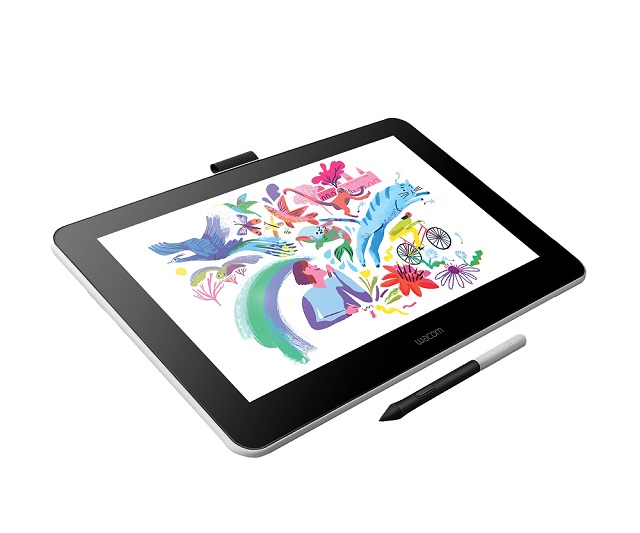
Wacom One is a budget-friendly pen display tablet designed for more junior artists and designers. It provides a natural and intuitive drawing experience that is similar to working on paper.
The tablet comes with a 13.3-inch IPS display with a resolution of 1920 x 1080-pixel and 96% sRGB color gamut, making your artwork look sharp and allowing you to see colors as they should be.
Besides this, The matte screen surface has a texture that really nice to draw on. It is also scratch-resistant and anti-glare, which ensures you can focus on your work without any pesky distractions.
The Wacom One has two built-in legs that can prop the monitor at a 19-degree angle. They can fold away to make for a flat tablet or open up for when you’re drawing directly on it.
The wacom one battery-free stylus comes with 4,096 levels of pressure sensitivity and tilt recognition, which means whether you’re sketching, coloring, or retouching, this pen knows exactly what you’re trying to do.
Wacom One is compatible with Windows, Mac, Android and Chrome operating systems and support popular creative software, such as Corel Painter, CorelDraw, Photoshop, illustrator and more.
5. Huion Kamvas Pro 16
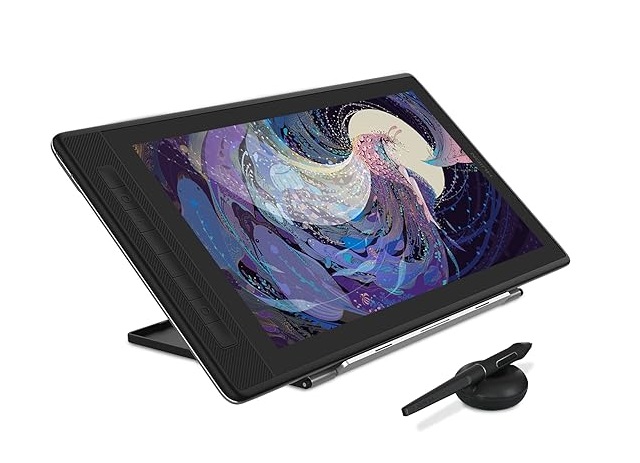
The Huion Kamvas Pro 16 is a great, affordable display drawing tablet that designed for digital artists who need precision and accuracy in their work.
This has a built-in 15.8″ IPS display with a 2.5K QHD (2560 x 1440) resolution and 145% sRGB color gamut. Colors are vibrant, details are crisp, and it’s a joy to work on.
The tablet features a laminated display that makes everything look clear and with little to no parallax . For a good feel while drawing, the Anti-glare etched glass surface contains smooth but slight texture.
The tablet features 8 programmable press keys that you can set up to be whatever shortcut you want. There is also a stand that can be adjusted to 6 different angles.
The stylus is made of plastic but has rubber grips at the front which gives it a comfortable grip and a nice feel. It also comes with two buttons that are defaulted to right/left click mouse functions.
Moreover, the stylus pen is battery free and has tilt control as well as very accurate pressure sensitivity of 8192 levels. Drawing across it is smooth, the pen feels great to use.
The Huion Kamvas Pro 16 is compatible with a wide range of art programs and operating systems, including Windows, Mac OS and Android.
6. XP-Pen Artist 16 (2nd Gen)
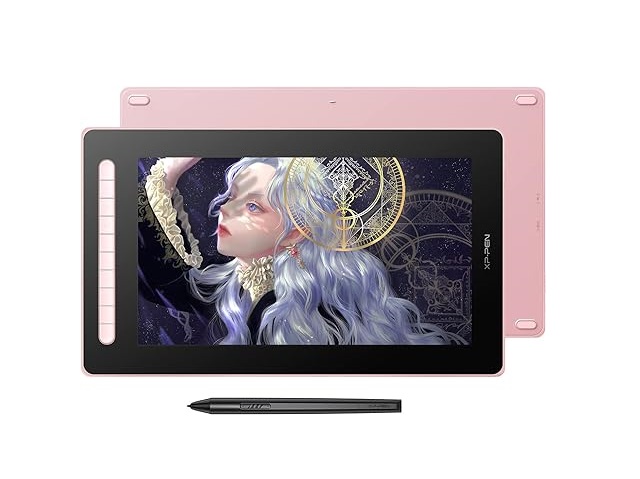
XP-Pen Artist 16 (2nd Gen) is a powerful and portable pen display for artists on a budget.
It has a gorgeous 15.4-inch IPS display with FHD 1080p resolution and 127% sRGB color accuracy. The display looks bright and clear, and the colors are vibrant and accurate, which makes working on projects a real joy.
The screen is laminated for a smooth, parallax-free experience. Also, the feedback between the matte glass surface and the pen offers good mimicry of actual paper.
You can set basically all keyboard or mouse shortcuts that you can think of using the 10 function key option, which helps you stay focused on your artwork.
The included pen features XP-Pen’s new X3 smart chip and boasts 8,192 levels of pressure sensitivity, tilt detection and 3 grams initial activation force.
The battery-free pen is responsive with plenty of subtlety in its sensitivity. It does feel better than the previous styluses, so you can create with incredible control and high accuracy.
You can connect the Artist 16 (2nd Gen) pen display to laptop with only a Type-C cable! It feels like magic, which eliminates cable clutter. Unfortunately you have to buy it separately.
The Artist 16 (2nd Gen) display tablet is available in four colors: green, blue, pink and black. It is compatible with Windows, Mac OS, Linux, Android, and Chrome OS.
7. Wacom Cintiq 16
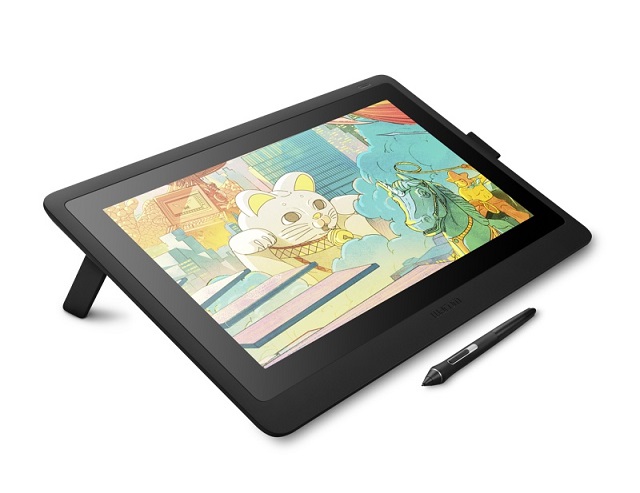
Wacom Cintiq 16 is one of Wacom’s least expensive pen display tablets. But still good for painting and designing.
This tablet has a 15.6-inch 1920 x 1080 pixels IPS display with 96% sRGB / 72% NTSC color accuracy that makes everything look clear and colorful.
The matte anti-glare screen surface has a paper-like feel, which worked well with the Pro Pen 2 for precise editing and painting.
The device connected to Mac and Windows computers using a 3-in-1 cable, and the driver was super easy to install.
It came with 2 foldable legs that allowed us to place it in a 19 degree working position.
The Pro Pen 2 makes use of 8192 levels of pressure sensitivity and 60-degree tilt recognition. It also has a low activation force, meaning it recognized even the smallest lines to give precise editing and drawing .
Regardless, rest assured that with this Cintiq 16 tablet, Corel Painter and CorelDraw becomes incredibly easier to use.
8. Huion Kamvas 22 Plus
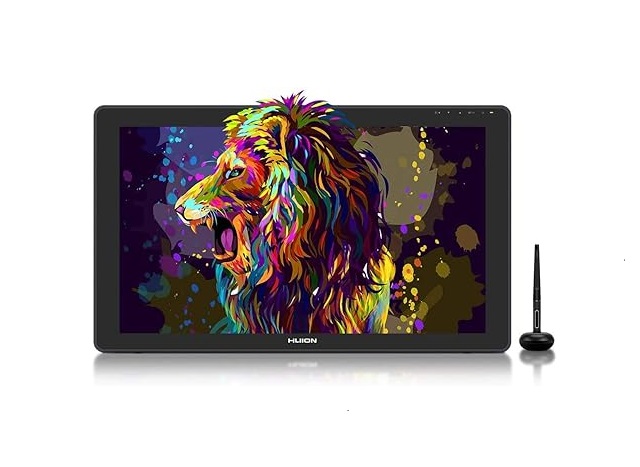
The Huion Kamvas 22 Plus is an affordable display tablet that offers everything we were looking for. It has huge drawing surface, an adjustable stand, and a perfectly accurate pen.
With a big 21.5-inch 1080p QLED Screen to work on, you have more than enough space for all of your designs and drawings.
The tablet covering 140% of the sRGB color gamut and its ability to display 16.7 million colors, the Kamvas 22 Plus ensures that your image is rendered with perfect accuracy.
The parallax is minimal thanks to the fully laminated screen. Another cool feature was the inclusion of a paperlike feel because of the anti-glare etched glass surface.
The PW517 pen has 8,192 pressure levels, low activation force, and tilt recognition, which all give you amazing precision for the most natural drawing experience.
The tablet has drivers for major operating systems, including Mac, Windows, and even Android. It works well with Corel Painter, CorelDraw and other software that artists use, so it should be an absolute joy to work with.
9. XP-Pen Artist 24 Pro
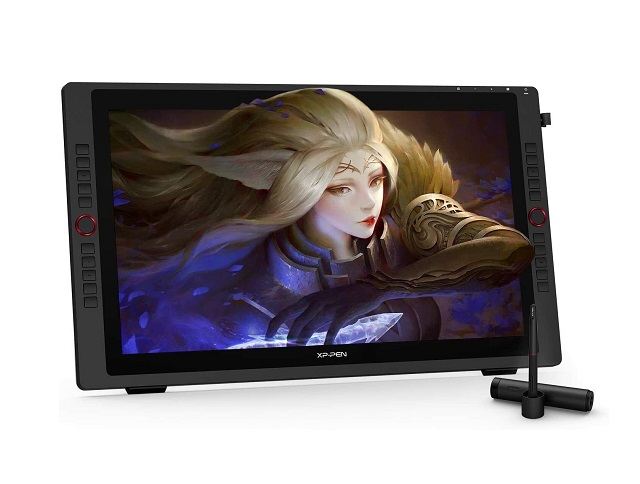
XP-Pen Artist 24 Pro is Bulky and large, But it’s the perfect screen tablet for digital artists that work with large-scale drawings.
The 23.8-inch 2.5K QHD IPS display with 120% sRGB color gamut is a visual treat. Colors are vivid and accurate, details are clear and sharp, making it ideal for detailed graphics work.
The screen has a matte screen protector applied to give it a more paper feel which also reduces glare.
This tablet has 20 shortcut buttons along the side that are completely programmable to a specific keyboard key. It also has two red scroll wheels that allows you to zoom in and zoom out.
The PA2 stylus is battery-free, offers 8192 levels of pressure sensitivity and and tilt sensing capability that gives you excellent control over line weight and shading.
The pen itself is solid and comfortable to hold that with a rubber grip for maximum comfort when working for long periods. It also has 2 side buttons for extra customization if you need it.
The built-in stand can be adjusted so that the monitor sits anywhere from 16 degrees up to 90. Also, The tablet is compatible with most applications and supports both Windows and MacOS.
Best of all, for its size, features, and performance, the Artists 24 Pro is very competitively priced compared to premium Cintiq Pro pen displays.
This makes it easy to get an expansive 24-inch screen with strong graphics performance at a reasonable price point.
10. Microsoft Surface Pro 9
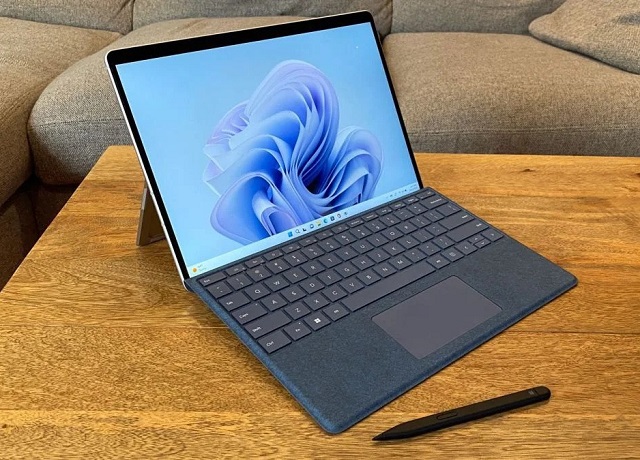
Microsoft Surface Pro 9 is a lightweight, standalone tablet with powerful performance, incredible display, portability and versatility.
It has a 13″ PixelSense touchscreen display with an ultra-high 2880 x1920 resolution, providing incredible detail for graphic design work.
It supports HDR content and video with a wide 106.1% sRGB and 75.1% DCI-P3 color gamut, showing colors that are popular and accurate.
The Surface Slim Pen 2 (sold separately) provides a natural pencil-like feel with 4,096 pressure levels, tilt support and low latency.
Coupled with the 120Hz refresh rate of screen left us impressed with how smooth and responsive the pen felt.
This surface Pro also boasts its palm rejection allows you to rest your hand on the screen comfortably while drawing without accidental touches.
Additionally, it is equipped with the Intel 12th-Gen i5 and i7 chips which makes it extremely fast, and efficient, and its 8GB, 16GB or even 32GB RAM ensures excellent multitasking abilities.
Lastly, running full Windows 11 Pro provides access to powerful creative apps like Corel Painter and CorelDraw natively.
As a 2-in-1 tablet, the Surface Pro 9 transforms seamlessly between a tablet and a laptop, making it easy to draw and design on the go.
How to Use Pressure Sensitive Digital Pen in CorelDRAW?
The following tools in CorelDRAW let you use the pressure of your pressure-sensitive pen, stylus, or other device: Artistic Media (Expression mode), Eraser, Smear, Twirl, Attract, Repel, Roughen, and Smudge.
In addition, you can vary brushstrokes by using pen tilt and pen bearing with the Artistic Media (Expression mode) tool, Eraser , Roughen and Smudge tools. Note that pen tilt and pen bearing can be used only if your pen or stylus supports these features.
Conclusion
If you are drawing in Corel Painter and CorelDraw, we recommend that you take advantage of using a graphic tablet since with it, you will gain speed, precision, and comfort.
Almost any drawing tablet will be a massive improvement on trying to use something like Painter and CorelDraw with a mouse.
You should find the right tablet for you from this list! Whether you’re looking for a graphics tablet, pen display, or a standalone tablet.
There are plenty of options out there for artists, It all boils down to what your preference, workflow, ecosystem, skill levels and budget are.
If you’ve got a small budget to start with, pick something cheaper from our list and start with that.
As you grow, you can upgrade to something a little more loaded with features. Happy drawing!