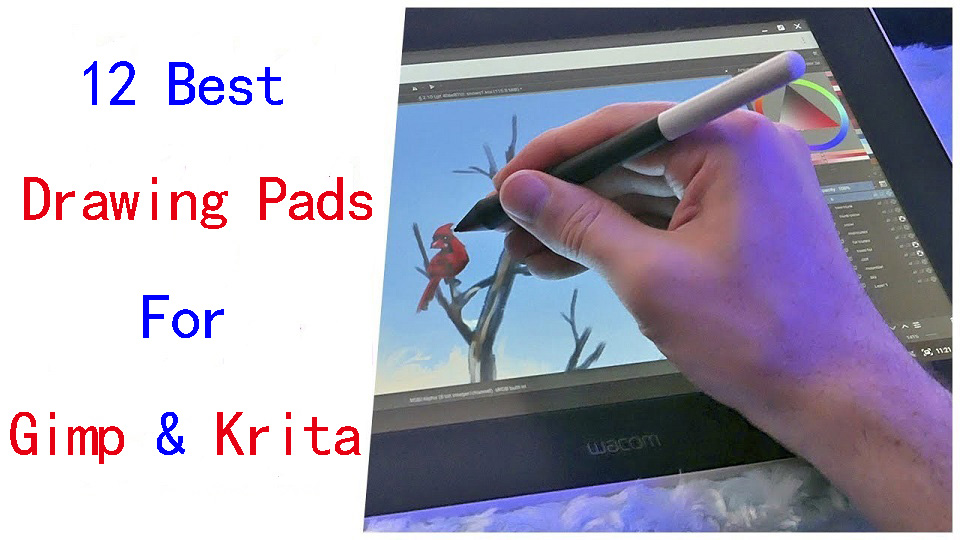
For starters Gimp and krita software are both open source and free. Those are the two big reasons why most people would prefer one of these two softwares over other available commercial software ( Photoshop, Corel painter, etc.).
Many individuals use these software for image editing and other art/graphics related content.
But in order to run smoothly, it needs the right device. Anyone who has spent long time editing photos and drawing with a mouse will find that often, it’s just not the best experience.
As an artist, you need the best tools available to create your work. When it comes to digital art, that means having a good drawing tablet.
If you’re thinking about getting a drawing tablet to use with Gimp or Krita, it’s important to do some research on what’s available.
Should you go for a tablet with or without screen? What size of graphic tablet – small, medium or large? Do you need a specific number of shortcut keys to improve your productivity?
There are a lot of models, types and brands on the market, so choosing the best one isn’t an easy task. That’s why we provide this guide to help you pick the tool that best fits your needs.
In this article we are focussed on tablets that will connect to your Windows, Mac and Linux computers for use with Gimp or krita.
These devices are built for performance and can make a whole world of difference when illustrating or drawing.
Krita vs Gimp: What’s the major difference?
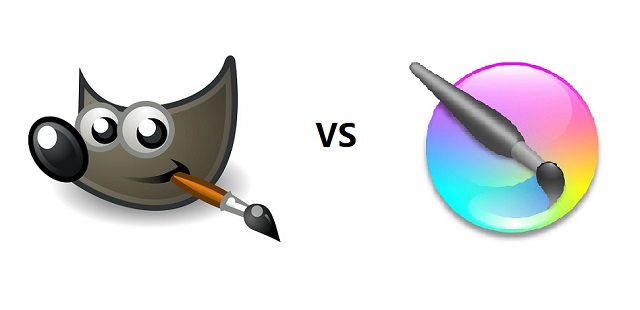
Gimp is more of a digital or photo editing software. It is available for Linux, macOS, and Windows operating systems.
Gimp allows you editing or manipulation of images in terms of retouching, enhancing color properties, curve management and many more things.
Usually people who want to edit photos or images would use gimp as a free alternative to Photoshop, and while you can use gimp for other things other than just editing images, Gimp has its roots more deeply rooted in that territory.
Krita is more art ( as in drawing, painting, etc.) focused. It is available for Linux, macOS, Windows and Android operating systems.
Krita works with layer panel, creates a mask for non-destructive layer, do colorizations and many other editing’s, as well as manipulation work related to raster graphics.
The layout is much less complex in Krita compared to gimp. And the canvas you will be working on in Krita is feels more closely related to working with paper, rather than a digital background.
Most people who use Krita are probably solely using it for art related purposes, such as 2D animations, digital paintings, etc.
Both software does their work effectively by using a number of standard tools as well as features. Popular, wonderful, and are nice contenders to the pay to use alternatives out there.
What are the different types of drawing tablets?
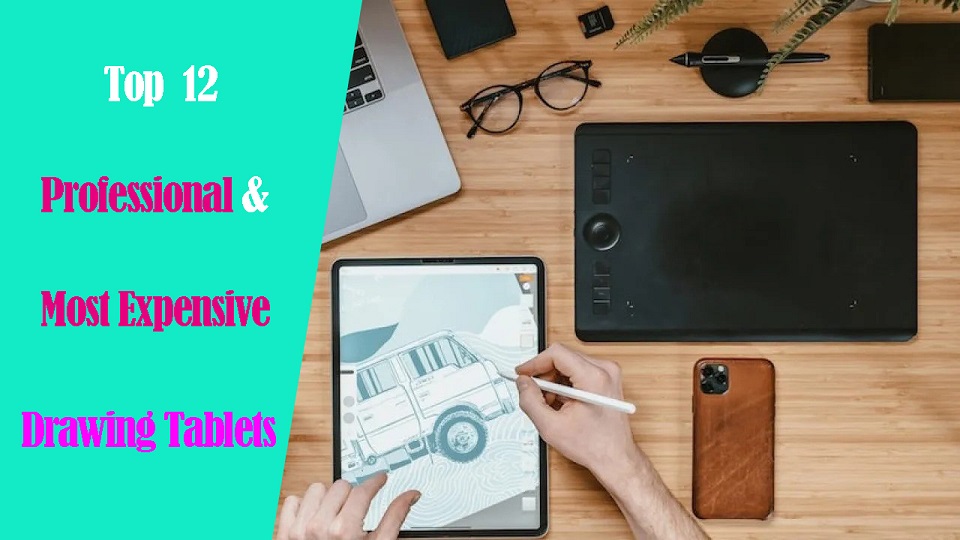
If you want to work at your desk with your desktop or laptop, then there are two types, you can go screen or no screen depending on budget and preference.
Screenless tablets are way cheaper , and depending on size, they are pretty portable. The greatest learning curve is in getting used to not looking at the tablet as you work, but at the computer screen instead.
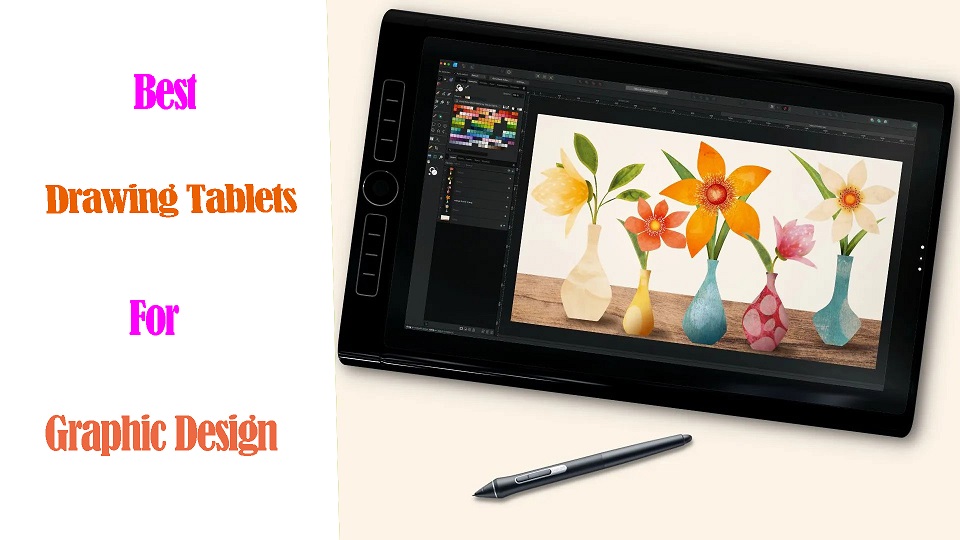
If you choose to go for a pen display monitor you’d be working on the display directly with the pen which makes it much more natural & speedy than a non-screen graphic tablet.
Wacom, Huion, and XP-Pen, are the most popular drawing tablet brands that all make tablets with and without screens.
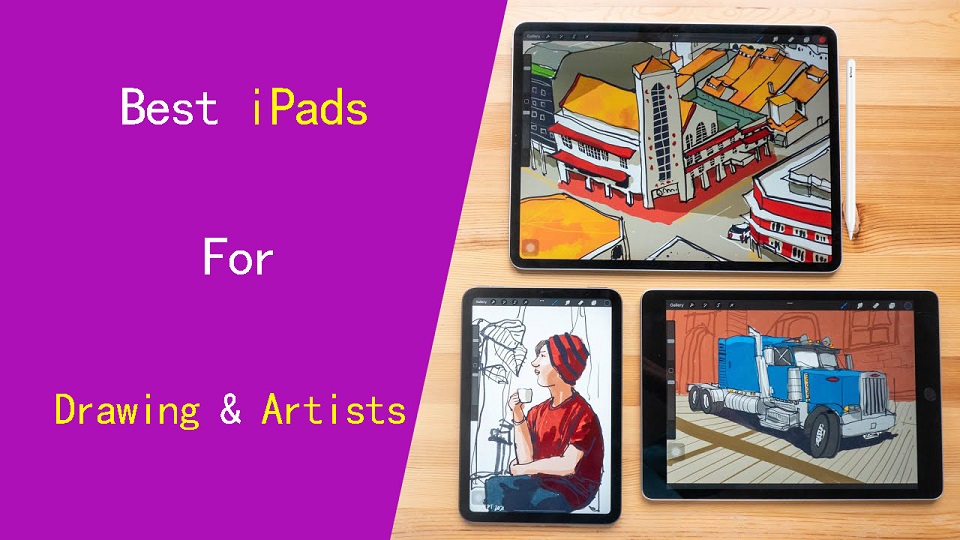
If you want the flexibility of an all-in-one drawing device, you have a handful of options: ipad, Windows, and Android tablets.
All-in-one Standalone drawing tablet combines a computer, screen and a stylus. They can run mobile drawing apps and OS itself. So you don’t need to connect it to an external computer.
You can take it out with you on the go. This will give you more portability. However, the prices of all-in-one tablets are usually on the expensive side.
Benefits of Using a Drawing Tablet With Gimp and Krita
If you do digital illustration work or photo retouching in Gimp and Krita, a graphics tablet could make your work a good deal easier and a lot more fun. A stylus offers a more natural way to draw, paint and retouch than a mouse could ever provide.
A mouse is a totaly crude and unnatural way to draw and paint. The ergonomic design of pen tablet reduces hand strain and RSI. you’ll never feel tired or get a soar wrist while working for long time.
While using a mouse you only have your wrist movements whereas while working with a pen you get hand movements which is way more comfortable & natural; Once you start using a pen tablet you can’t go back.
On a technical side the pen also beats the mouse. Far more precise as the points of the screen will always be at the exact points of the pad. A mouse judges this by its surface it has come in contact with which causes problems.
The greatest advantage of a drawing tablet over a mouse is that the former is sensitive to pressure—it registers how hard you press the pen to the tablet. Just like with a pencil, you can push harder to draw thicker, darker lines, and lighter to draw thinner, lighter lines.
Programmable buttons on the drawing tablet can increase your workflow by quite a good margin over a mouse. You can customize these buttons to suit your specific preferences, making it easier to access the tools you use the most.
What size drawing tablet should I get for Gimp and Krita?
When looking for a pen tablet, the size is what matters the most, since not all pen tablets have the same active drawing area.
Usually the non-screen drawing tablets are available in three size variants: Small (A6 and A7), Medium (A5) and Large (A4 and A3).
Big tablet equal to larger drawing area and higher precision. Designers and illustrators will want a much larger drawing surface so they can create in a more natural environment.
If you do not have a lot of space, you may want to consider a smaller graphic tablet.
Small tablet equal to small motion becomes a big motion on the screen. Feeling very cramped. Most photo editors would prefer a smaller tablet and surface, making it easier to work in small details, as well as making it easier to travel with.
Going for medium size of active drawing area will guarantee comfort and portability at the same time.
The perfect size for pen tablets depends on the size of your monitor. If you use a laptop with a 13-inch to 15.6-inch screen, you should get a small or medium tablet.
For pen display monitors the sizes can go from 10” to 32”, so choosing the best pen display for you will highly depend on your needs.
If what you need is portability, going for tablets from 12” to 16” would be the best choice, since you can carry them anywhere as long as you have a laptop to plug them in.
However, if you’re looking for a more permanent workstation, then going for bigger models from 22″ to 32″ will work great.
12 Best Drawing Tablets for Gimp and Krita in 2024
Our list of top-rated tablets allows you to compare dozens of models side-by-side and make your choice. You’ll also find detailed specifications and the pros and cons of what each tablet offers.
The drawing tablets for Gimp and Krita do not differ based on the app- they typically work just as well in each application.
1. One By Wacom
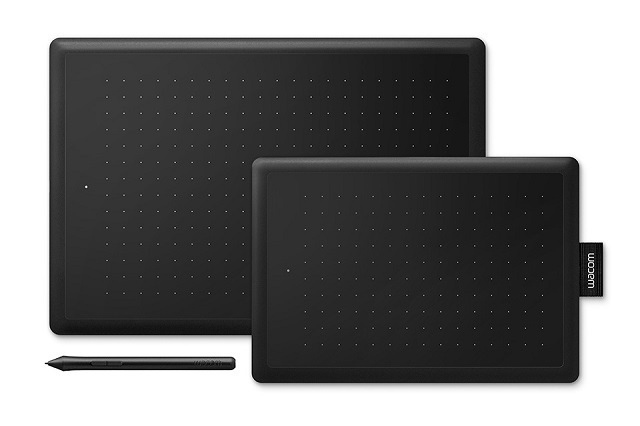
One by Wacom is a simple and affordable tablet for getting started. It comes with minimal features, but aren’t too expensive, and are guaranteed to last.
It is currently available in two sizes: small ( 6.0 x 3.7 inches active area) and medium (8.3 x 5.7inches). These smaller sizes makes it’s easy to pack up and take anywhere with you for working on the go.
With 2,048 levels of pressure sensitivity in its battery-free stylus and a wonderful 2,540 LPI resolution, it’s decent for a natural feel while drawing or editing photo.
One by Wacom is compatible with Mac, Windows, Linux, Chromebook and Android Devices.
Wacom is a leading brand name in the drawing tablet space ensures the confidence of no small issues such as lag, incompatibility and complicated setups occuring.
No more frustrating issues occur during the mid creation of art projects with this drawing tablet.
2. Wacom Intuos
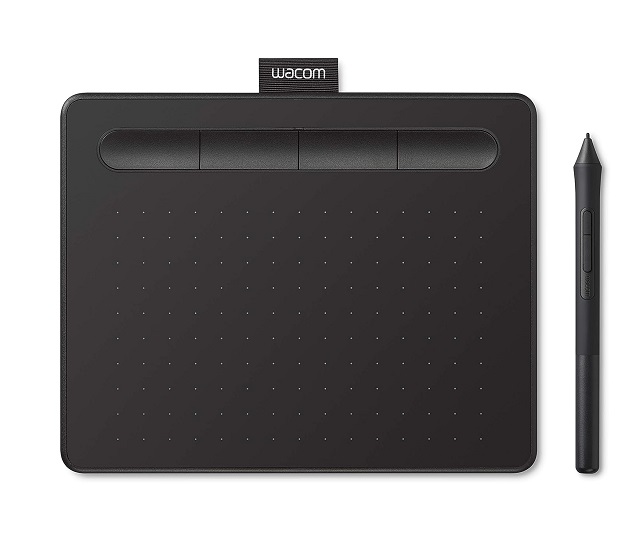
The Wacom Intuos line is for beginners and budget conscious people.
The Wacom Intuos is available in two sizes: Small with a 6.0 x 3.7″ drawing area, and Medium with an 8.5 x 5.2″ drawing area. Super portable and a great travel companion.
Besides that, the texture of the drawing surface is another awesome feature to mention. With 4,096 pen pressure sensitivity and around 60 degrees tilt support, you can create any 2D and even 3D drawings.
At the top of the tablet are 4 buttons that enable you to quickly access the settings. Driver settings also allow Quick Keys to be customized.
Thanks to a built-in lithium battery and Bluetooth connectivity on the tablet, you’ll be able to use it where and how you see fit.
Wacom Intuos is compatible with Windows, Linux, Mac, Android and Chrome OS devices. Connecting to any device is as simple as plugging in the USB cord or using Bluetooth.
3. XP-Pen Deco 01 V2
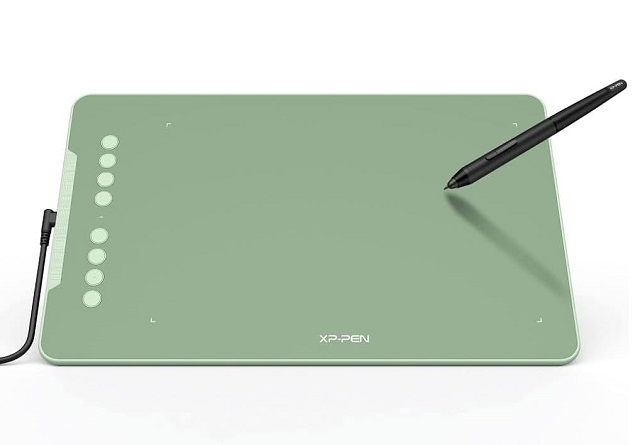
XP-Pen are well known for making quality products for the budget end of the market, and they don’t disappoint in the Deco 01 V2.
This model has a 10×6.25 inches working area so you have more space to create and get work done. But at only 8mm thick and lightweight, making it highly portable.
The battery-free stylus has 8,192 levels of pressure sensitivity, delivery is smooth. It even supports 60 degrees of tilt brush effect! The lines and strokes come out looking natural.
A stylus holder, which also houses 8 additional tips for the stylus, comes standard with the tablet.
The tablet is provided with eight express keys for shortcut mapping. If that’s not enough, the two programmable buttons on the stylus will suffice.
The Deco 01 V2 is widely compatible with Chromebooks, Windows, Linux, macOS computers, and also certain Android devices.
Available in three vibrant colors: black, green and pink. Whether you are sketching, colour painting, designing, or doing other creative work, it does a great job!
4. Huion H610 Pro V2
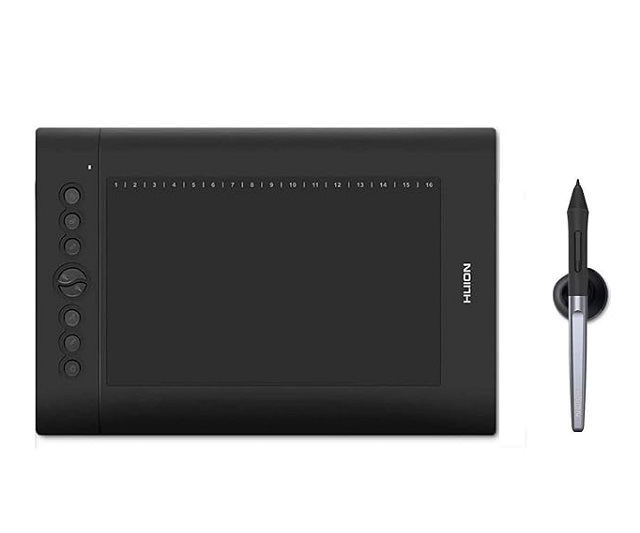
Huion is another popular affordable drawing tablet brand. Their H610 Pro V2 is very similar to the XP-Pen Deco 01 v2 in most ways.
Most of the tablet is actually the active drawing area, which is 10 × 6.25 inches, That means you get plenty of space to draw without the need for zooming and panning.
The 8 express keys and 16 soft keys let you assign your favorite keyboard shortcuts and custom macros for a really fast workflow.
±60 degrees tilt recognition combined with high 8192 levels of pressure sensitivity offer more accurate and natural drawing experience.
The pen is battery-free, very light and fits comfortably within your hand, aided by a rubber grip.
Huion H610 Pro V2 is compatible with Windows, Mac OS, and Android devices. It also works well with all mainstream digital art programs such as Photoshop, Gimp, Krita, Inkscape, Clip Studio paint, and etc.
5. XP-pen Artist 12 (2nd Gen)
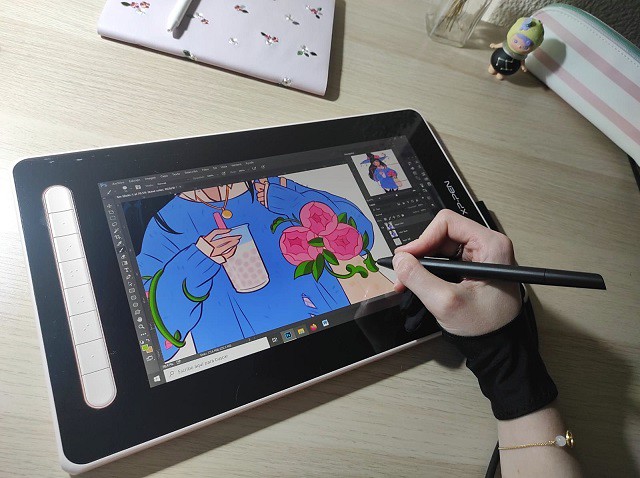
The XP-Pen Artist 12 (2nd Gen) is a powerful and portable pen display for artists on a budget.
Available in four colors: Black, blue, green, and pink. It’s durably-built, with a sturdy housing and a compact, portable design.
The tablet has a 11.9-inch IPS screen with 1,920 × 1,080 Full HD resolution at 127% of the sRGB color gamut. It looks sharp and vibrant there’s no obvious pixelation.
This display is fully laminated to minimize the parallax. There is a matte finish that carries an anti-glare coating and has a slight bit of texture to it, which replicates a drawing-on-paper feel.
The battery-free pen features XP-Pen’s latest X3 chip technology and boasts 8,192 levels of pressure and 60 degree tilt recognition, very accurate and smooth, no lag or latency at all.
It also has a low initial activation force of 3g, meaning it recognized even the smallest lines to give us precise editing and drawing.
Eight customizable buttons on the tablet allow users to set up with their most used tools and commands for easy and smooth workflow when in use.
This tablet is also compatible with a wide range of operating systems, including Windows, Mac, Linux, Chrome OS, and Android, making it a versatile option for users with varying needs and preferences.
The XP-Pen Artist (2nd Gen) series are also available in three other sizes: 10.1 inches (Artist 10 2nd Gen) , 13.3 inches (Artist 13 2nd Gen) and 15.4 inches (Artist 16 2nd Gen).
6. Huion Kamvas 13
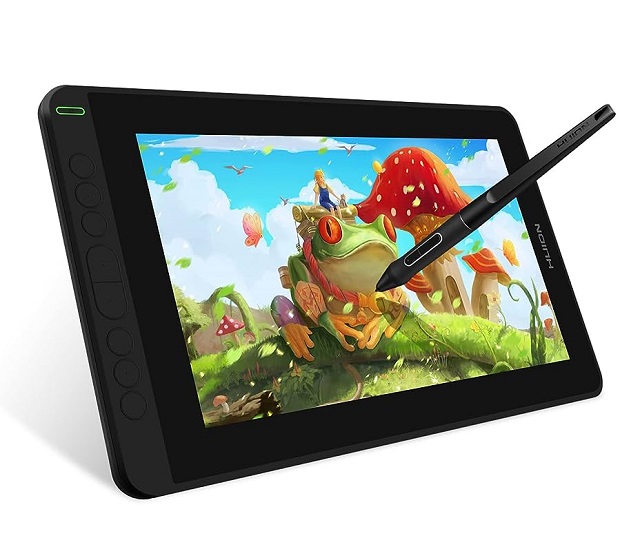
The Huion Kamvas 13 comes in as the best drawing tablet with screen for beginners due to the premium construction, a pen that feels like using a real pen, and affordable price.
This tablet comes with an IPS screen that supports 1080p resolution and 120% sRGB color gamut for crisp and vibrant pictures.
The built-in matte screen protector and laminated display also makes the drawing experience really nice. There’s the tactile feeling of drawing on the paper surface and the lines appears directly beneath the pen tip without any gap.
It’s also equipped with 8 customizable ExpressKeys, allowing you to make the editing or drawing experience your own and get the tablet working exactly how you want it to.
The pen is battery free, has 60 degree tilt response and 8192 levels of pressure sensitivity. Regardless of the PR angle the pen does its job perfectly well.
The Kamvas 13 tablet is compatible with Windows, macOS and Android devices, you can draw with any creative software including Illustrator, photoshop, Gimp, Krita, Inkscape and etc.
7. Wacom one 13
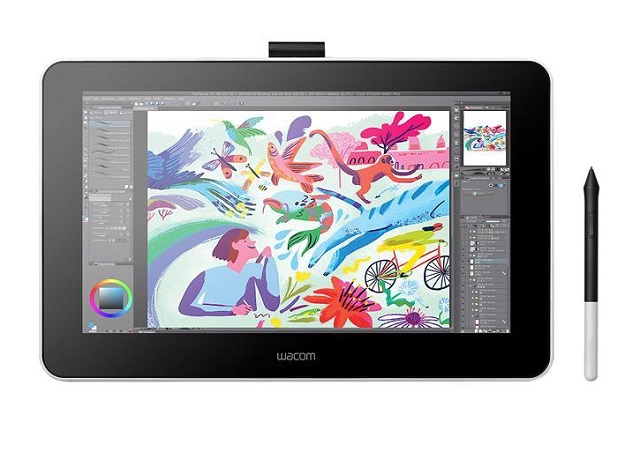
The Wacom One 13 is an entry-level graphics tablet that features a display screen.
The tablet comes with a LCD screen with 1080p FullHD resolution and 72% NTSC / 99% sRGB color gamut. It also has a textured anti reflective surface.
If you are not involved in photography professionally, the Wacom One’s screen will be more than good enough for you.
The pen supports 4096 levels of pressure sensitivity and 60 degree tilt angle. This is enough to detect your hand’s subtle, intricate movements and translate them into the digital sphere.
Wacom one is still thin and portable. So you can easily take it around if you need to. And it comes with adjustable legs, providing more comfort when working on a desk.
The Wacom one works with Mac and Windows and is also compatible with some Android and chromebook devices.
8. Wacom Cintiq 16
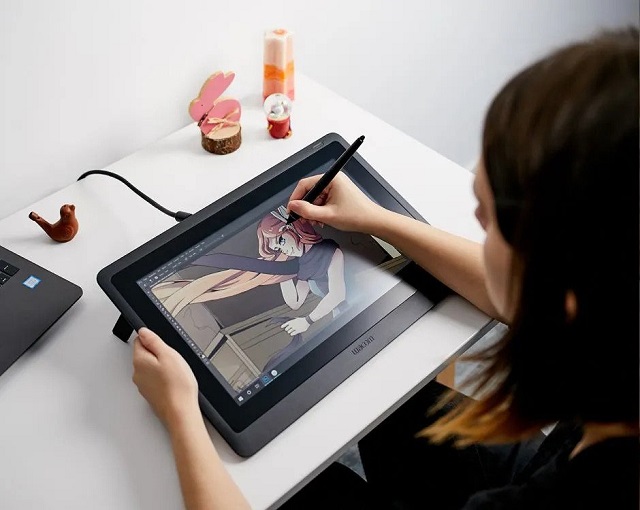
Cintiq 16 is a moderately priced drawing display from Wacom, great for art students and pros on tight budgets.
Its 15.6-inch FHD 1080p LCD screen is a pleasure to work on, and the screen does have a matte finish to it which makes it really nice to draw on.
The color spectrum is 72% ntsc / 99%sRGB, which is lower than that of higher-end cintiq pro models, but this shouldn’t be a problem for most straightforward photo edits.
You can use the included Pro Pen 2 to make your edits with pleasingly precision, which gives you 8,192 pressure sensitivity levels. It is also tilt-responsive and gives you lag-free tracking.
You can easily connect Cintiq 16 to any Mac or Windows device with the included HDMI cable.
The tablet is also available in a larger 22-inch variant called Wacom Cintiq 22 which could be a great choice if you want a tablet with a larger drawing canvas.
9. Huion Kamvas Pro 16
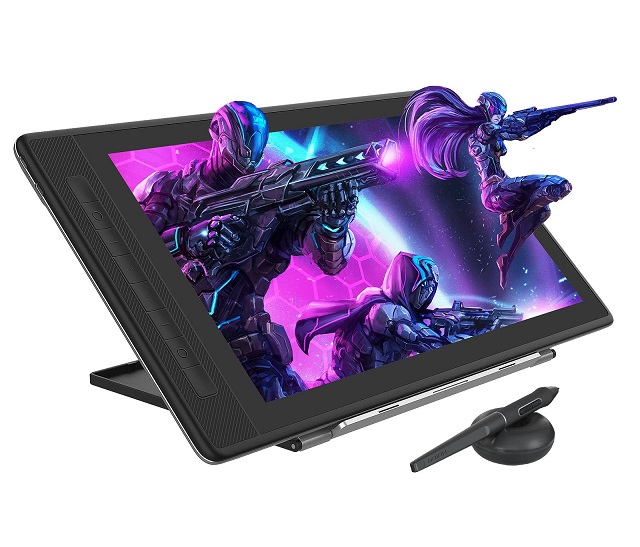
Huion Kamvas Pro 16 (2.5K) is a really nice pen display monitor, perfect for both beginners and professional artists. The quality and the performance are fantastic!
The Kamvas Pro 16 tablet has a 15.6 inch QLED screen, 16.7 millions colors with 145% sRGB gamut for color accuracy and vibrancy.
It has a 2,560 x 1,440 pixels resolution which means it is 2.5k QHD. As the resolution is much higher than any of the bigger monitor and for that reason it gives really crisp clear images.
The surface is anti-glare etched glass which gives it a paper-like texture to draw on. Furthermore, the full-laminated technology completely integrates glass with the screen to reduce parallax.
There are 8 customized express keys that helps in quick access to your favorite shortcuts. This can be configured to anything you use constantly like brush sizes, eraser, zoom, and more.
The battery-free pen features Huion’s PenTech 3.0 technology that brings more stability and sensitivity to the tip. With 8,192 pressure levels and a 60-degree tilt the stylus is responsive and accurate.
There’s also an adjustable tablet stand that can be configured from 20° to 60° so you can adjust your work area to the most comfortable position.
It is widely compatible with Mac, Windows, Android and Linux devices, as well as software like Photoshop, GIMP, Krita, Medibang, Inkscape, and Blender.
10. Huion Kamvs 22 Plus
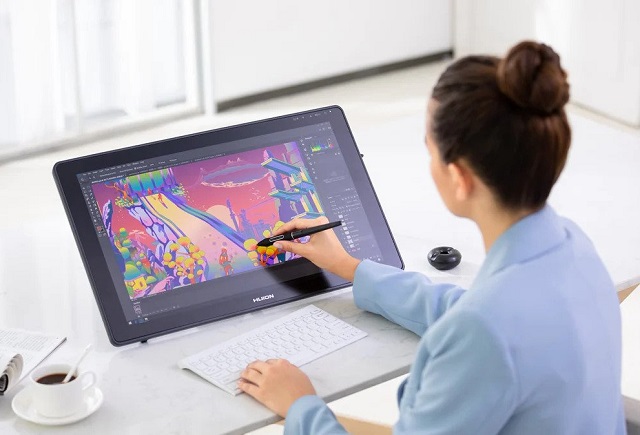
Huion Kamvas 22 Plus is large enough and can help you work on bigger drawings more simply without the need for zooming and panning.
The Kamvas 22 Plus comes with a 21.5-inch QLED screen that has a 1080p resolution, 1200:1 contrast ratio, and 140% sRGB wide color gamut ensures vivid colors.
It has a fully laminated screen and comes with a matte etched glass surface, which further improves the image quality and drawing performance.
The pen is battery free and has 8,192 pressure levels that make a drawing or photo-editing feel natural. Additionally, plus or minus 60 tilt recognition technology allows you to draw a variety of lines.
The included tablet stand is of great quality, solid and makes adjusting your preferred working angle a real breeze.
Kamvas 22 Plus can work seamlessly with devices running on Windows, macOS, Linux OS or Android, and supports various mainstream digital art software.
11. XP-Pen Artist 24 Pro
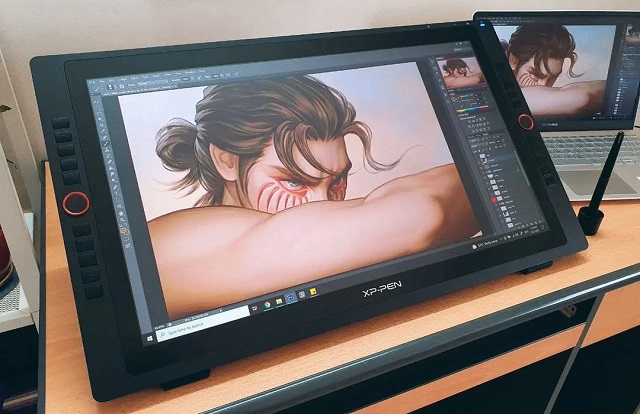
Artist 24 Pro is the largest pen display from XP-Pen and offers excellent value for money, with everything you need to get started.
It offers a 23.8-inch IPS panel at 2560 x 1440 resolution and an excellent color gamut of 90% Adobe RGB. The screen looks great, with vivid colors and crisp details.
Along the front of the tablet are 20 shortcut keys and two Red Dial Wheels, that is a lot of customizability! The 2 scroll wheels can be programmed to handle finer tasks, like zooming in and out or panning.
The PA2 battery-free pen has a nice design and is high quality. It has a rubber grip and two shortcut buttons on the side.
With 8192 levels of pressure sensitivity and tilt detection support, there’s hardly anything this pen cannot handle.
The stand is built into the monitor with a great level of adjustment, which is strong and sturdy enough to handle this large display without shaking.
XP-Pen Artist 24 Pro supports Windows, Linux and Mac OS.It is also compatible with popular digital art software, such as Photoshop, Illustrator, SAI, CSP, GIMP, Krita, Inkscape, and Blender.
12. Surafce Pro 9
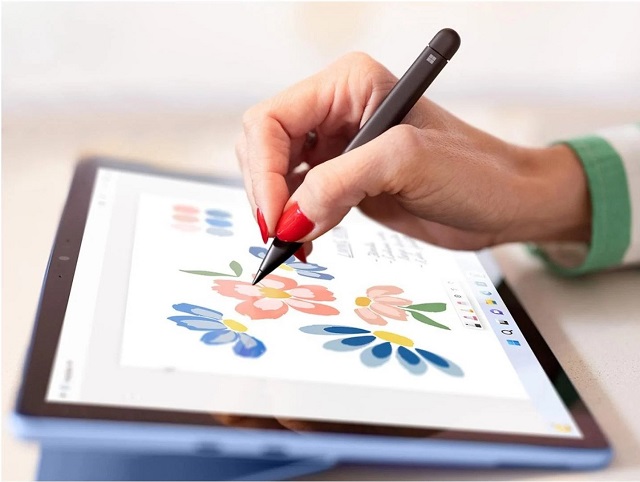
The Microsoft Surface Pro 9 was supposed to be the perfect device that combines power, portability, and drawing precision. But it is also one of the most expensive devices on the market.
The tablet itself has a nice minimalistic design with a slim form factor. It is available in four colors: Platinum, Graphite, Sapphire, and Forest.
Surface Pro 9 comes with a 13-inch PixelSense Flow display with a 2,880 x 1,920 pixel resolution, 120Hz refresh rate and covers 100% sRGB color gamut.
The touch screen is impressive, and offers a lot of deatils, the animations across-the-board are smooth to the touch and eyes. So whether you’re sketching or painting the art, this display will never disappoint you.
Its powerful 12th Gen Intel Core i5 or i7 CPU means everything runs quickly and smoothly. Along with the processor, the surface pro has good RAM and storage options to choose from.
The Surface Slim Pen 2 (sold separately) with a flatter design has 4,096 levels of pressure sensitivity and precision tilt detection, Artists who do digital coloring and shading will like that.
Surface Pro 9 is portable, it has a decent battery life, the pen works just fine, it’s very powerful, running on Windows 11, it supports the full version of Gimp and Krita.
How to set up and use a drawing tablet in Krita?
Wondering how to use a drawing Tablet in Krita? We’ve got you covered.
Once you’ve unboxed your tablet, be sure to visit their brand’s official site and download the most recent drivers for your tablet and operating system.
Drivers are software that allow the tablet to talk to your computer. It’s a good practice to restart your computer once driver changes have been made.
Once you’ve installed the most recent drivers and support software for your tablet, it’s time to creat a krita profile and Custom all the settings to suit your precise needs.
For example, Drawing tablets have various buttons, which you can map to different functions for maximum functionality and efficiency.
You can click on the “pen” tab, select “tip feel” to adjust the pen’s pressure sensitivity when it comes into contact with the tablet.
You can also adjust the pressure sensitivity in Krita Program.
Open Krita, go to Settings, Configure Krita, Tablet settings. Here you will see a wide variety of brushes and settings that can be adjusted to respond to varying levels of pressure.
The detailed customization allows you to feel like you’re really holding a pen, marker, or brush while you work and apply effects in Krita. This tends to result in more natural-looking results. You can even layer and smooth out results in real as you’re doing.
Conclusion
A good Pen tablet can make your work in Gimp and Krita much easier and more effective. Drawing and coloring are the best examples.
These 12 tablets are all worthy options for any level of artists out there. The best tablet will depend on your specific requirements and budget.
The simple drawing pen tablet without a screen is ideal for beginners and is less expensive. You can start your artistic career with this type.
A pen display monitor is suitable for both amateurs and experts. They are a little pricey. But there is a wide range of budgets accessible for these tablets.
Furthermore, standalone drawing tablets are the most portable but quite pricey. If money is not an option and your whole work life depends on content creation, then they are substantial and absolute quality buys.
A quality drawing tablet can help you have a better drawing experience. But you still need to keep in mind that you have to keep practicing and developing your skills.
In addition, You can always upgrade down the road when you’re more comfortable and know what you need.

Thanks for the useful info! I recently got the XP-PEN Deco 01 V2, which is about the size of my iPad.
I got it to use with Krita and it seems to work there well enough, I just need to practice with it more.
It’s so much easier when all your tools work well together.